Interface tour: HUD, panels and controls
Camera, brush and hotbar cover most of the work. Undo and redo sit in the editor toolbar, and F1 opens the in-game guidebook from inside every editor, which is faster than alt-tabbing.
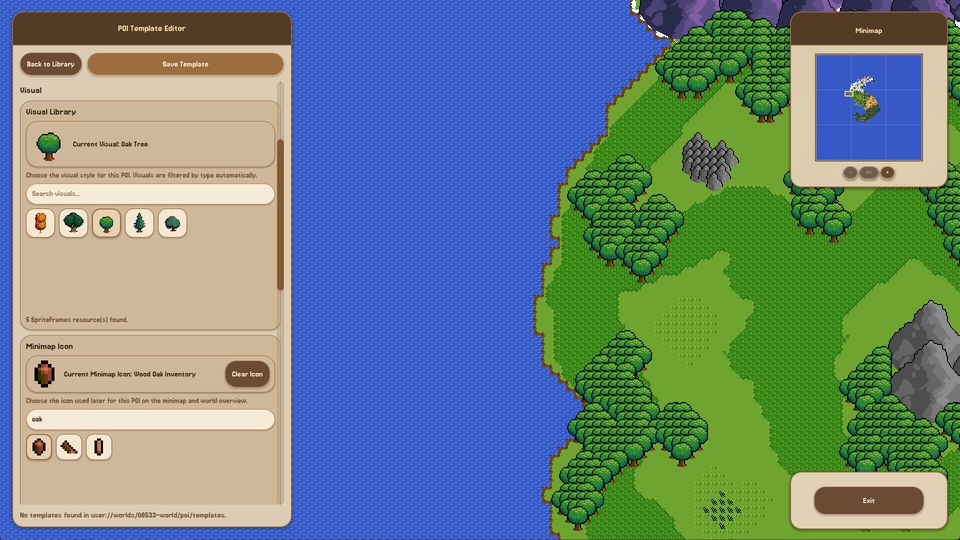
Fantasy World Manager has two faces: the world screen you watch, and the editor panels you work in. They share a HUD, and knowing which element belongs to which saves a lot of clicking around.
The world screen
| Element | Where | What it tells you |
|---|---|---|
| Mode title | Top of the screen | Which mode or editor you are in |
| Calendar | Status area | Year, month, day and time |
| Speed state | Next to the calendar | Whether time is running, and at which step |
| Minimap panel | Its own panel | Where you are, with a fit control for the view |
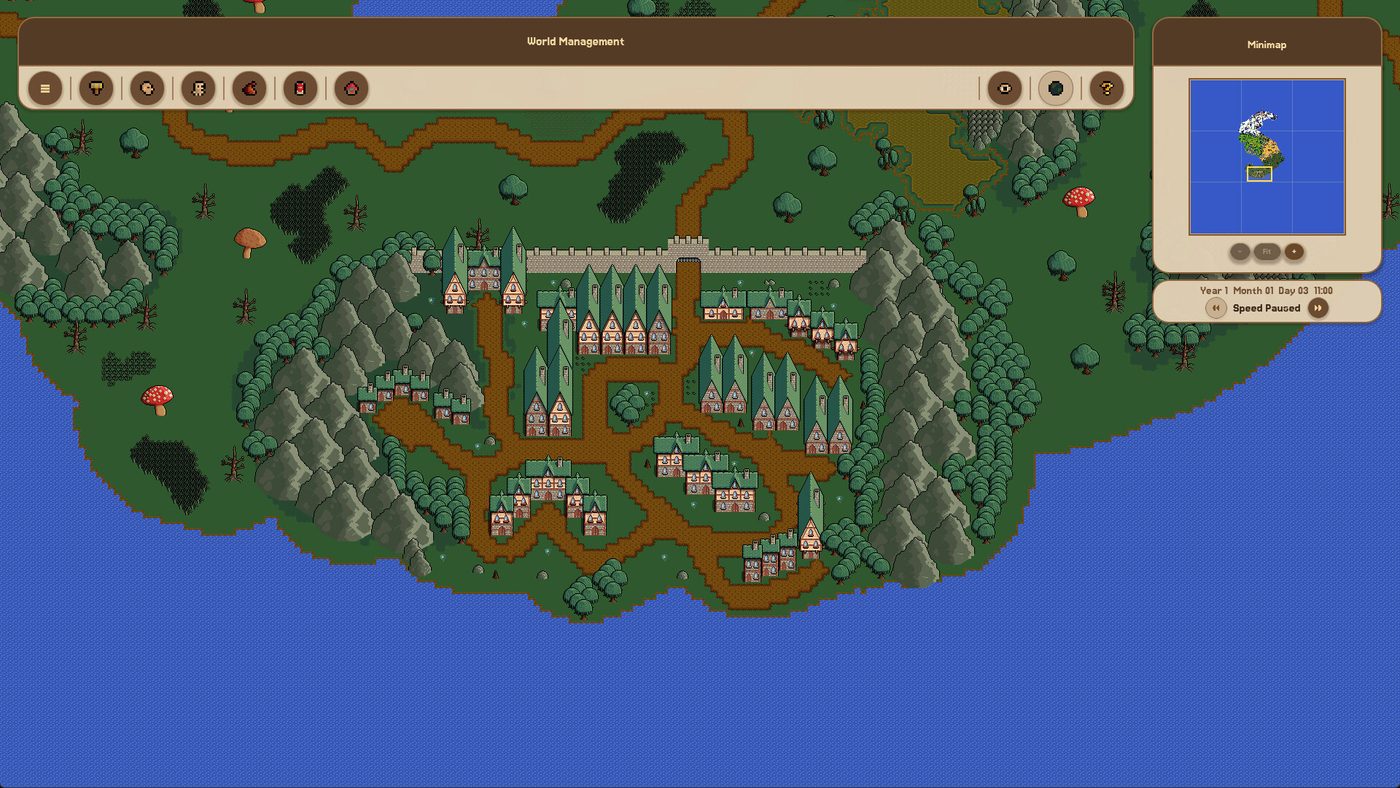
The calendar reading follows a Year 1 Month 01 Day 03 pattern with a clock alongside. In the launch build a month is a single day, which is why the day counter moves faster than the month label suggests. The time and speed page explains the pacing and the real-minute cost of each speed step.
The tile inventory
The tile inventory is the panel you will use most. It has a search field, category and type filters, a live count of matching tiles, and a grid of results.
Three habits make it bearable:
- Filter by category before you scroll. The catalog is large, and the category list is shorter than the tile list.
- Use the search field for anything you can name. Typing three letters beats hunting through twenty rows.
- Read the count. If a category shows a suspiciously small number, you are filtering too tightly and will conclude the tile does not exist.
Tiles carry categories that matter beyond organisation: a tile from the terrain family is not the same placement as one from the object family, and the layer you are painting on has to match.
The toolbar
The toolbar holds the active tool, brush size, and the placement modifiers.
| Control | Effect | When to touch it |
|---|---|---|
| Brush | Active drawing tool | Most of the time |
| Size | Brush radius | Narrow for coastlines and detail, wide for landmass |
| Smart | Assisted placement | Blocking out quickly |
| Collision | Refuses placement into occupied cells | Objects over buildings and paths |
Brush size is global rather than per-tool, so the most common workflow mistake is leaving a size-9 brush active when you switch from terrain to detail work. Check it whenever the result looks wrong.
The hotbar
Nine slots, filled from the inventory, selectable quickly. It is session memory rather than configuration: fill it with the tiles this particular map needs, not with a permanent favourites list.
The hotbar is the fastest way to work once a map has a vocabulary - four terrain tiles, two props, a wall, a roof and a path will cover most of a settlement.
The guidebook
The guidebook opens with F1, and it opens inside every editor rather than only from the main menu. It contains basic information and help, and the developer has said it will be extended with in-depth guides.
That makes it the first place to look for a control you have forgotten. It is also the only place in the build that documents controls authoritatively - this page describes what the interface exposes, not every key binding, because the bindings are the sort of thing that changes between builds and the guidebook is always current.
Save and exit
The editor toolbar carries a save and exit control. Two habits worth adopting from day one:
- Save before structural changes, not after. Undo covers a stroke; it does not cover a deleted district.
- Exit to the world screen before testing. Some state settles when you return to the world view, and testing from inside the editor can show you a world that does not exist yet.
Where the panels live
| Panel | Opens from | Covered in |
|---|---|---|
| Region and zone editors | World tools | Region and zone guide |
| Tile inventory | World editor | World editor basics |
| NPC and creature editors | Editor menu | NPC and creature guide |
| Item and equipment editors | Editor menu | Item and recipe guide |
| Inspectors (region, faction, zone, creature) | World screen | Simulation guide |