World editor basics
Pick a category in the tile inventory, choose a brush or shape, set the layer, then paint. The collision modifier stops you placing objects into occupied cells; the hotbar keeps nine tiles one keypress away.
The world editor is where you spend most of your first week. It looks like a paint program and behaves like one, with two differences that matter: what you paint has layers, and some of it has rules attached.
The four panels
| Panel | What it does | Where it bites |
|---|---|---|
| Tile inventory | Searchable catalog of terrain and object tiles, filtered by category and type | A tile placed from the wrong category lands on the wrong layer |
| Toolbar | Brush and shape tools, brush size, smart placement, collision | Brush size is global; a size set for terrain ruins detail work |
| Layer control | Which layer your next stroke lands on | Painting objects while terrain is selected silently does nothing |
| Hotbar | Nine slots for the tiles you use most | Filled from the inventory; it does not refill itself |
The inventory in the launch build shows category filters such as All Categories and All Types, a live count of matching tiles, and a search field. The bundled example content alone fills dozens of entries per category, so the search field is not optional once you go past the first few buildings.
Tools, and what each is for
The editor ships with four drawing tools plus a selection tool, and each one solves a different problem.
Pencil with shapes. The default. Freehand strokes for organic coastline and forest edges, with shape modes for anything that should be regular.
Rectangle. Walls, fields, building footprints, zone blocks. Fastest tool for anything with straight edges, and the one to use when you are blocking out a settlement before detailing it.
Line. Roads, rivers, fences. A line drawn with a wide brush is a road; the same line with a narrow brush is a path.
Select. Copy, paste and move a region of tiles. This is how you duplicate a building cluster instead of rebuilding it, and how you rescue a district you placed in the wrong place.
Undo and redo. Present in the toolbar and worth binding mentally before you start. The larger the brush, the more a single mistake costs, and undo is the only cheap fix.
Modifiers change how a tool behaves
Tool modifiers sit alongside the brush controls and apply to whatever tool is active:
| Modifier | Effect | Use it when |
|---|---|---|
| Scatter | Spreads placement instead of stamping exactly | Breaking up grass, rocks and forest floors |
| Snap | Aligns placement to the grid | Buildings, walls and roads |
| Grid | Shows the placement grid | Anything that must line up |
| Collision | Refuses placement into occupied cells | Objects over buildings and paths |
Collision is the modifier that saves the most time. Without it, a wide brush happily paints trees through houses and rocks through water; with it, the editor refuses the overlap and you find out immediately instead of three hours later when pathing breaks.
Layers, and why objects are not terrain
Terrain and objects live on separate layers. The practical consequences:
- You can repaint ground under a building without deleting the building.
- An object layer mistake does not corrupt the ground beneath it.
- Some tools behave differently depending on the active layer - a terrain tile dropped on an object layer is not the same placement.
Before a long painting session, check which layer is active. It is the single most common cause of "the brush is not working" in this editor.
A workflow that survives revision
- Block out the landmass with a large brush on the terrain layer. Do not detail yet.
- Place water where the coastline should be, then clean the edge with a smaller brush.
- Block settlements with rectangles: one for the core, one per district.
- Detail with scatter and small brushes.
- Place objects on the object layer, with collision on.
- Save and zoom out. Problems that are invisible at working zoom are obvious at map scale.
That last step catches more errors than any other habit. A settlement that looks dense and organic up close often reads as a grey blob from above, and the map view is how players will see it most of the time.
Where the editor stops
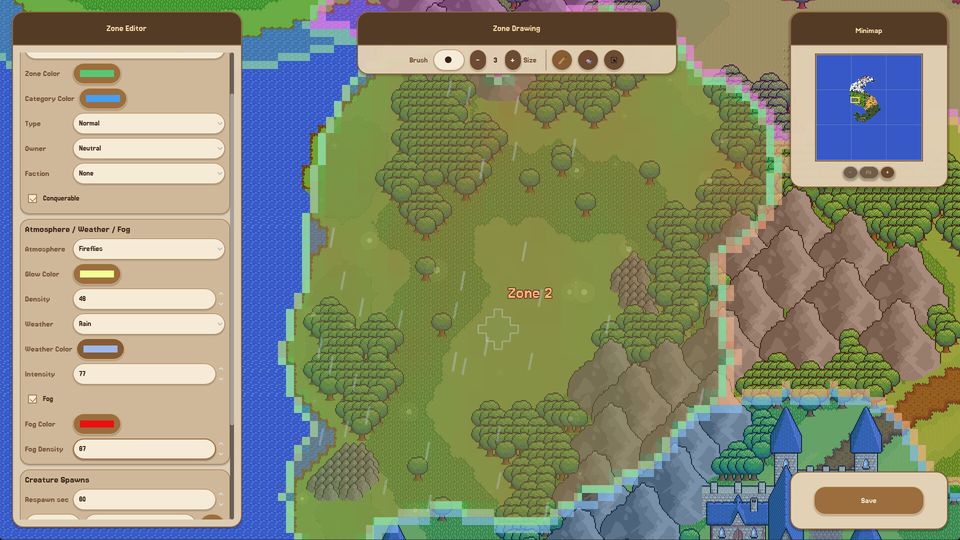
The world editor paints terrain and objects. It does not assign ownership, spawn rules or weather - those live in the region and zone editors, which sit on top of what you painted. A common beginner sequence is to finish a beautiful map and only then discover that ownership is a separate layer of work.
If you want to reuse a district or a landmark rather than repaint it, the prefab and POI guide explains how content is exported and re-imported, and the editor reference table lists every editor with what it produces.